
Faculty Grade Submission
Effective August 25, 2017, there is a new method for submitting final grades. The new application is hosted within Eagle Service, but will still be accessed via the myAU portal (“Submit Final Grades” link).
The new application includes a process for faculty to create a contract with the student for any Incomplete grades awarded. For each Incomplete grade, the faculty member must specify the requirements that must be completed, the date the outstanding work is due, the default grade that will be awarded if the work is not completed, and the date that the default grade will replace the Incomplete.
If you have any questions during the grade submission process, please contact the Record Services team (record_services@american.edu) who are ready and able to assist you.
How do I submit final grades?
In Fall 2017, the university adopted a new final grade submission process.
- Click on the Submit Final Grades link in the portal (https://myau.american.edu).
- You will be directed to the Eagle Service home page. Click on the Faculty Grade Submission section.

- From the available terms, you will select the section you want to grade.

- Once you select your section, click on the Grading tab.

- On the Grading tab, you MUST click on the Submit Final Grades link in order to enter grades. The default view is the roster overview, not the grade submission page.
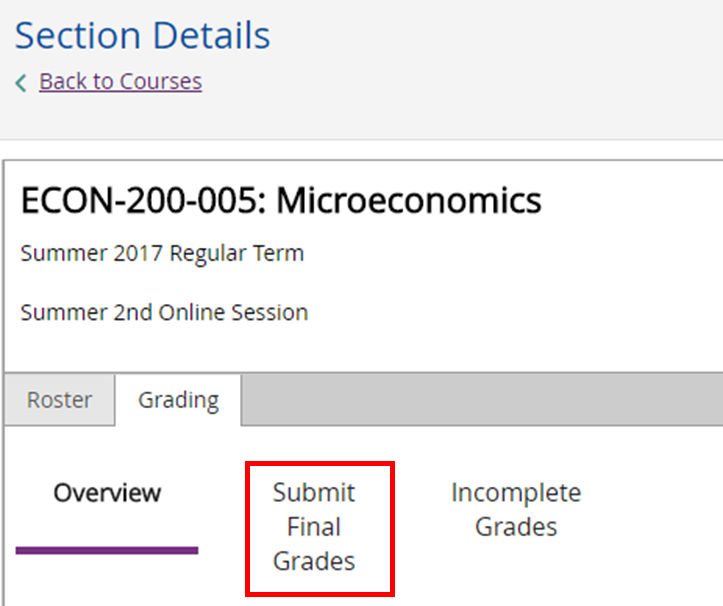
- Once you click on the Submit Final Grades section, you will be able to enter grades on a student-by-student basis using the drop-down grade selector.


The student's name and Student ID# will populate from the section.- If the student never attended, put a check in the box under Never Attended.
- If you select Never Attended, you will not be able to enter a Last Date of Attendance.
- If you select an FX or an ZX grade (administrative fail), you will be required to enter a Last Date of Attendance.
- Administrative fail is assigned by the instructor in lieu of a grade of F, when a student never attended or ceased attending the class, rendering an assessment of academic performance impossible.
- Select a Final Grade from the drop-down list of available grades.
- Faculty who award an Incomplete (I grade) must enter a date in the Incomplete Grade Expire Date column and complete the Incomplete Grade Contract via the Faculty Incomplete Grades Administration section in Eagle Service (additional instructions below).
- Grades entered into the Faculty Grade Submission application are immediately written to the student information system. For this reason, do not enter grades as "practice" or until you are ready to enter grades for the entire section.
- If the student never attended, put a check in the box under Never Attended.
How do I complete an Incomplete Grade Contract?
If you have awarded a grade of I - Incomplete to any student, you must complete an Incomplete Grade Contract for that student.
- To do so, click on the Faculty Incomplete Grades Administration link on the Eagle Service landing page.

- There are two sections on the Faculty Incomplete Grades Administration page. At the top of the page is where you complete the contract for newly awarded Incomplete grades in the Post Incomplete Grade Contracts section.

- The first six columns populate from the Final Grades Submission process:

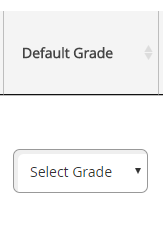
- The Default Grade is the grade that the student will earn if the student does not complete the requirements in the timeline specified in the Incomplete Grade Contract. Select the default grade using the drop-down grade picker.
- The Work Due Date is the date by which the student must complete all outstanding requirements and submit them to the faculty member for grading. This date should be far enough in advance of the Incomplete Grade Expire Date to allow for appropriate evaluation and grading.

- The Incomplete Grade Expire Date is the date that the currently selected Default Grade will be posted to the student information system. The grade will default to the end of the following semester, but can be adjusted by the faculty member.

- In the Work To Be Completed box, please detail any outstanding requirements the student must complete. Provide detailed instructions for the student including:
- Specific details of what assignments are outstanding
- Meeting dates/times/frequency between student and instructor
- Details about any equipment or space the student will need to complete the assignments
- Detailed instructions about how to submit the outstanding assignments The more detail the faculty can provide in this space, the better it will be for students and faculty alike.


- The second section of the form, Pending Incomplete Grades Overview is in the lower half of the page and lists all of the open Incomplete grades you have awarded.

- For each student, you will see the following standard information:

- Additionally, you will have the option of modifying the Work Due Date and the Incomplete Grade Expire Date.

How do I change an incomplete grade to a final grade?
- When the student has submitted the specified work and you are ready to post a final grade, use the Update Final Grade button to change the Default Grade to the Final Grade.


- The student's ID, name, the number of credits and academic level will be displayed.

- Use the drop-down selector to report the Final Grade. The final grade should be determined following the evaluation of any work submitted by the student as part of the Incomplete Grade contract.

- Once you select the final grade, click on the Post Final Grade button. The grade will be submitted to the student information system and the Incomplete Grade Contract will be removed from your view in the Faculty Incomplete Grades Administration section.

Grading System
The grading system has changed over time. To view grading practices over time, please visit this page for additional information.